 services@aitchsoft.com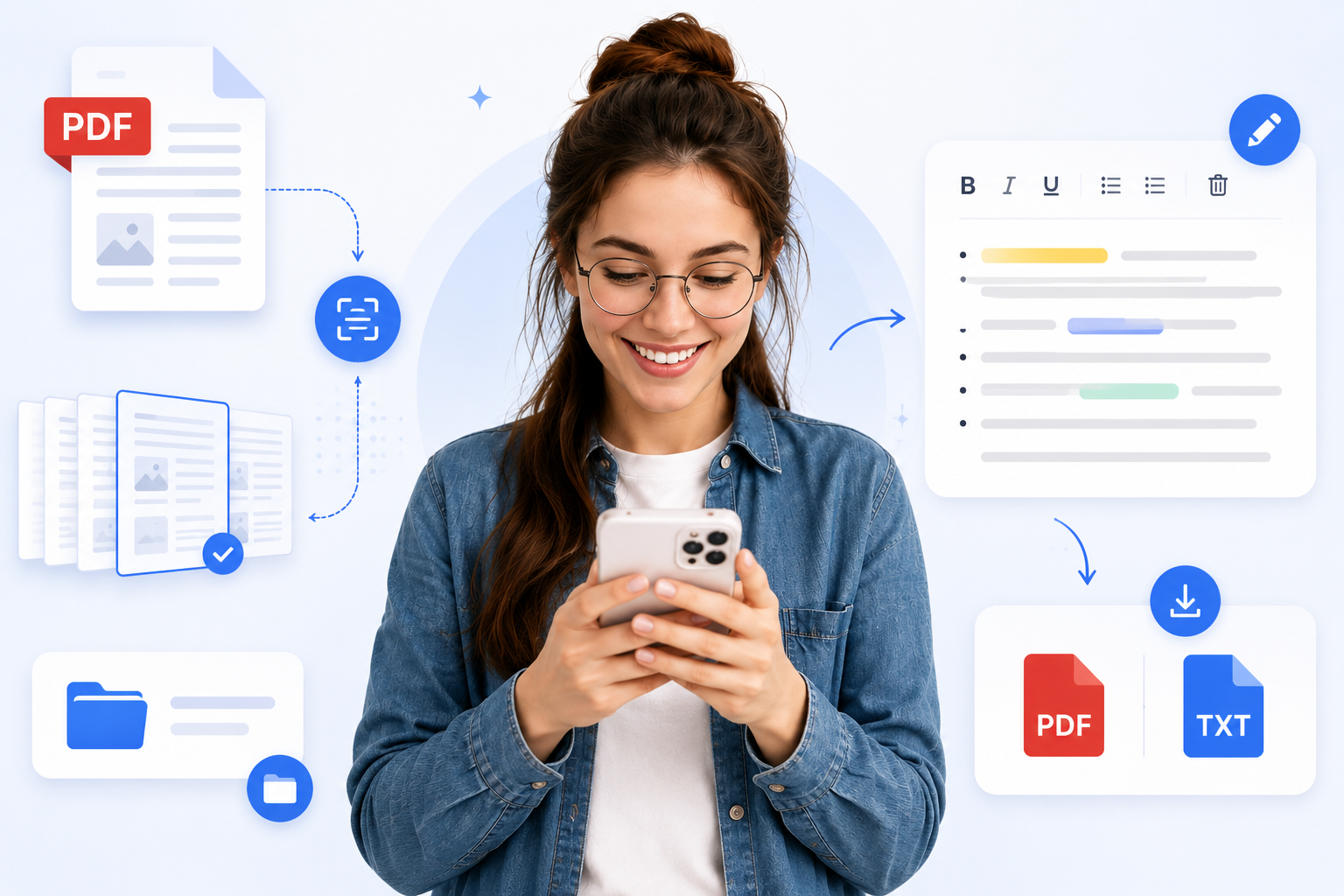
“Education is the most powerful weapon which you can use to change the world.” — Nelson Mandela
Introduction:
Long PDF textbooks are convenient, but they can be difficult to work with when you need specific information quickly. A single document may contain hundreds of pages, making it time-consuming to search, copy important sections, and create useful study notes.
PDF text extraction offers a simpler way to work with this content. Instead of manually copying information, students can extract text from a PDF, review the important sections, edit the content, and organize it into notes.
For scanned documents, OCR (Optical Character Recognition) can also help recognize text from PDF pages and convert it into editable content. Tools such as Textify bring these steps together, allowing students to extract, edit, organize, and export content from long PDFs more easily.
In this guide, we'll look at how to extract text from a long PDF textbook and turn that extracted content into more useful study material.
How to Extract Text from a PDF Textbook and Turn It Into Notes
It is late at night, and you have an exam coming up in a few days. Your textbook is open on your laptop, but there is one problem: it is a 400-page long PDF.
You know the information you need is somewhere in there. You just have to find it.
You search through the chapters, scroll through pages, and finally find a paragraph that looks important. You copy it into your notes. Then you go back to the PDF and start searching again.
Copy. Switch to your notes. Paste. Go back to the textbook.
After an hour, you realize that you have only covered a few pages.
This is a common problem for students who rely on digital textbooks. PDFs are convenient, but studying from a long PDF is not always as simple as opening a file and reading it. When you need to create notes, find specific information, or prepare for an exam, the process can quickly become time-consuming.
This is where extracting text from a PDF can help. Instead of manually typing or copying everything, you can turn the content of a PDF into editable text and then use that text to create summaries, revision notes, key points, and questions. Tools such as Textify can make this first step easier.
Why Are PDF Textbooks So Popular Among Students?
Think about a student's backpack before digital textbooks became common. A laptop, notebooks, folders, and several heavy textbooks could easily fill the whole bag.
Now, many students can carry most of their study materials on one device.
A student can have a textbook on a laptop at home, open the same material on a tablet in the library, or quickly check a chapter on a phone while traveling. There is no need to carry a separate book for every subject.
PDF textbooks are also easy to store. One device can hold dozens of books without taking up space on a desk or bookshelf. When you need to find something specific, you can search for a word or phrase instead of flipping through page after page.
They also fit naturally into online learning. Universities, teachers, and online courses often provide lecture notes, research papers, assignments, and textbooks as PDF files.
For students, the convenience is clear. Everything can be in one place.
But there is a catch.
Having a textbook on your screen does not automatically make it easier to take notes from it.
Why Taking Notes from Long PDF Textbooks Can Be Difficult
Imagine you are preparing for an important exam.
You open your 400-page PDF and start looking for the chapter your teacher mentioned. You scroll through the pages until you find the right section. Then you notice an important definition.
You copy it.
Now you switch to your notes.
You paste it.
Then you switch back.
You find another useful paragraph.
Copy.
Switch.
Paste.
After doing this again and again, the process starts to feel less like studying and more like data entry.
The problem becomes even bigger when the PDF has multiple columns, tables, unusual spacing, or complicated formatting. Text might not copy exactly as it appears on the page. You may have to fix line breaks, remove unnecessary spaces, or reorganize the headings.
There is also another problem. When you are focused on copying information, it is easy to miss something important. You might skip a definition because you are trying to move quickly, or spend so much time formatting your notes that you have less time left to actually understand the chapter.
That is why students often need a better way to get useful text out of a long PDF.
How to Extract Text from a PDF Textbook
The basic idea behind PDF-to-text extraction is fairly simple.
You start with your PDF textbook and upload it to a PDF-to-text converter. The tool processes the document and identifies the text inside it.
If the PDF contains normal, selectable text, the content can usually be extracted directly. But what happens when the textbook is actually a scanned document?
This is where OCR, or Optical Character Recognition, comes in. OCR can scan the pages and recognize the words appearing in the document. Instead of treating the page as just an image, the tool can turn the recognized content into usable text.
Once the document has been processed, the extracted content can be organized by page. You can then review the pages, find the information you need, and work with the text without manually typing everything from scratch.
How Textify Makes the Process Easier
This is where Textify fits into the workflow.
Imagine uploading your long textbook and letting Textify process it. The document is scanned, and OCR can be used when the pages contain scanned text. Once the processing is finished, the content is separated into individual pages.
Now, instead of scrolling through the entire textbook every time you want to work on one section, you can select the page you need.
Suppose you are studying a chapter about economics. You find a page containing an important definition and a few examples. You can work directly with that extracted content. You can select and copy text, make important words bold, or delete text that you do not need.
Maybe there is an entire page that is irrelevant to your notes. You can remove the page instead of keeping unnecessary content in your document.
This gives you more control over the material. You are not simply extracting text and leaving it untouched. You can clean it up and shape it into something more useful for studying.
Textify can also help keep your documents organized and sorted. And if you stop working halfway through your textbook, you can come back later and continue from where you left off.
Once everything looks the way you want, you can use the full-screen view to work with the document more comfortably and export the finished file as PDF or TXT, depending on what you need.
The workflow becomes much simpler:
Upload PDF → OCR/Text Extraction → Separate Pages → Edit → Remove Unwanted Content → Organize → Export
Instead of spending hours manually copying paragraphs, you can spend more of that time deciding what information actually matters.
And that is the real benefit of PDF-to-text extraction.
It is not simply about getting words out of a PDF. It is about making those words easier to work with.
For a student preparing for an exam, that small change can mean less time spent copying and more time spent learning.
Make Studying PDF Textbooks Easier
A long PDF textbook can be a great study resource, but working with it is not always easy. Finding the right information, copying useful sections, and turning them into notes can take up more time than you expect.
Extracting text gives you a simpler way to start. You can get the content out of the PDF, go through the important parts, remove anything you do not need, and organize the information into notes that actually help you study.
With a tool like Textify, you can take this process a step further. Upload your PDF, work with the extracted text, edit the pages and content you need, remove anything unnecessary, and export your finished document as a PDF or TXT file.
The goal is simple: spend less time copying information and more time understanding it.
Frequently Asked Questions
Can I extract text from a PDF textbook?
Yes. You can use a PDF-to-text converter to extract text from a digital textbook. If the PDF contains scanned pages, OCR can be used to recognize the text and convert it into editable content.
How do I turn a PDF textbook into notes?
Start by extracting the text from the PDF. Then go through the content and keep the information that matters most, such as definitions, key concepts, formulas, examples, and important explanations. You can organize these points under clear headings and turn long paragraphs into shorter notes.
Can I extract text from a long PDF?
Yes, PDF-to-text tools can process long documents, although the exact file size or page limits depend on the tool you are using. For a large textbook, working with individual pages can also make it easier to find and organize the information you need.
Can I edit text extracted from a PDF?
It depends on the tool. With Textify, you can work with the extracted content, select and copy text, make important text bold, and delete unwanted text. You can also remove pages that you do not need.
Can I extract notes from a scanned PDF?
Yes, if the tool supports OCR. OCR can recognize text from scanned pages and convert it into usable text. The accuracy can depend on the quality and clarity of the original scan.
What is the easiest way to extract text from a PDF?
For a quick workflow, upload the PDF to a PDF-to-text converter, let it process the document, review the extracted content, and then copy or export the text you need. A tool such as Textify can also give you options to edit and organize the extracted content before exporting it.
Is it better to take notes from a PDF or a physical textbook?
Both have their advantages. A physical textbook can feel more natural for some students, while a PDF is easier to search, store, and access across different devices. If you already study from PDFs, extracting the text can make the note-taking process faster and more flexible.